We will see how we can “Add/Configure” Incoming Webhook URL of a channel in MS Teams.
Incoming webhook URL can be used for multiple purposes to push certain messages/notifications/outages on schedules through “API or HTTP queries“.
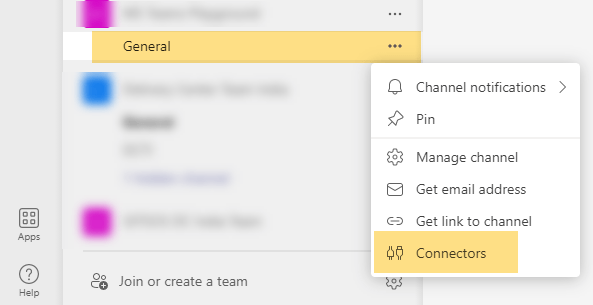
To configure it, open desired MS Teams “Channel” and click on three dots(…) to populate more options Menu and click on the option called “Connectors”.
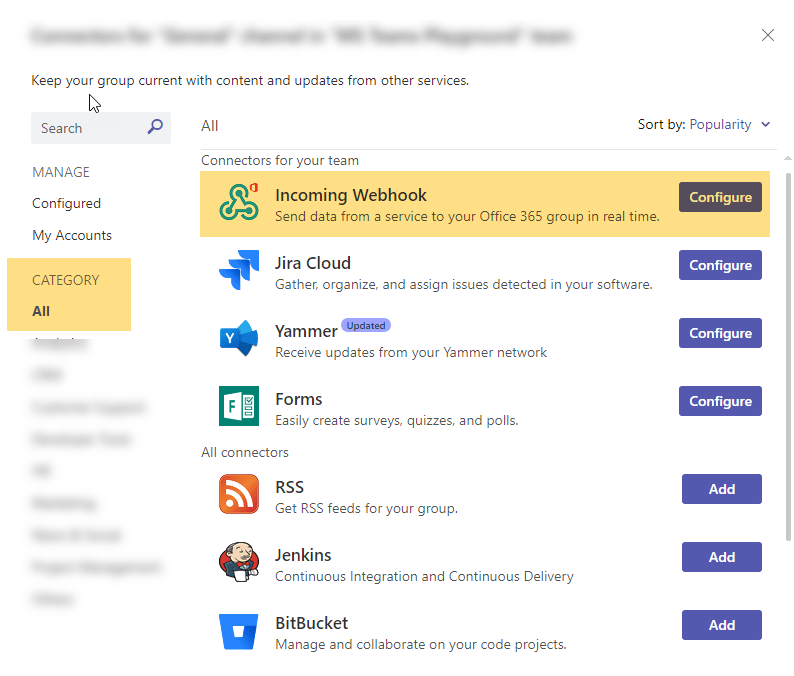
A window will open up with multiple options and categories, Click on “Category” and select “All”, then you need to find the option called “Incoming Webbook” on the right hand side window, once you see that, click on “Add/Configure”.
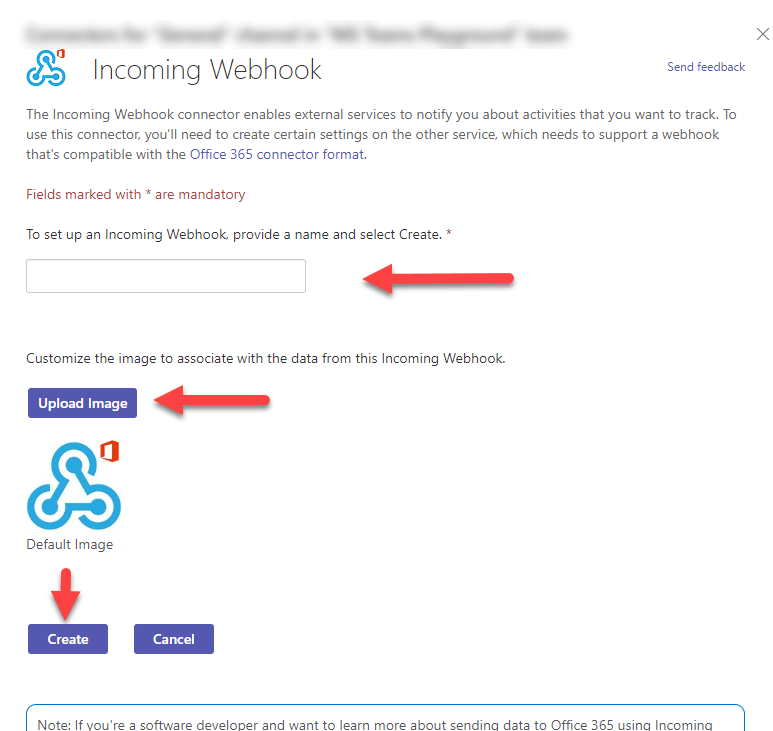
It will open up a new window providing you options to fill desired name and image for “Incoming webhook”, check all the details and fill in as per your selection and upload image if you want something else other than “default image” and hit “Create”.
Once created, it will come up with one more window showing the details as well as finalizing the creation step, here, if you are sure about everything can click on “Done”, but before clicking, copy the “URL” which can be used for your automation or push notification tasks.

 ITGalaxies