In day to day activities for managing Intune we found out that we don’t have any such monitoring placed that can alert us for APNS, Apple VPP and DEP tokens expiration.
To cater this demand a solution can be created by building something out of Azure automation that can achieve the desired results.
We will talk about the same in this article, what has been built and how it works?
Overview
This automation works on Graph API that can access Intune information on this connector blade with the help of App based authentication.
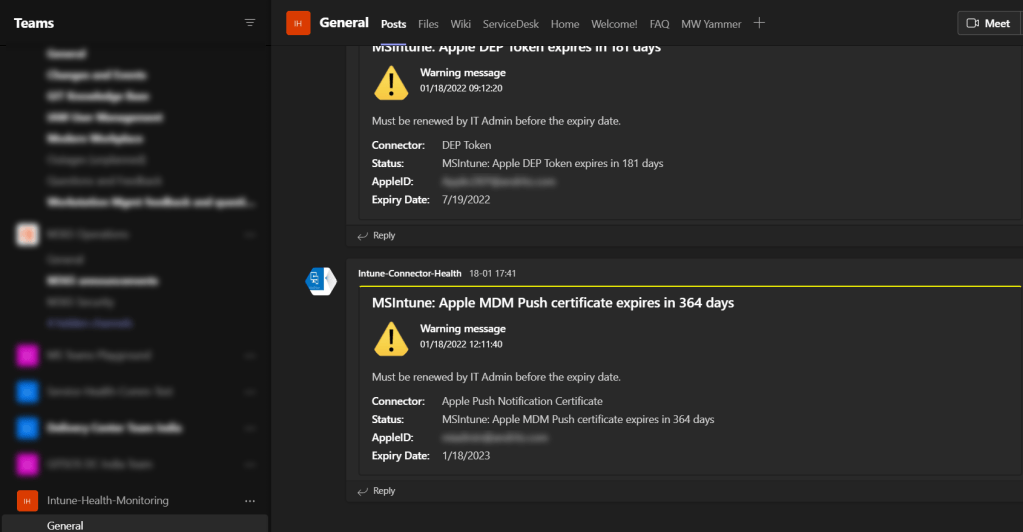
If there is any expiry is near and falling under less than 30 days, it will notify us by alerting on Teams Channel along with all required details about expiration.
Requirements
- Azure AD App Registration
- Required permissions for the App
- An Azure automation account
- A PowerShell script with required module
- A runbook that will get created having the PS script running.
Azure App registration & Secrets
App Name: Intune Administration
App ID: XXXXXXXXXXXXXXXXXXXXX
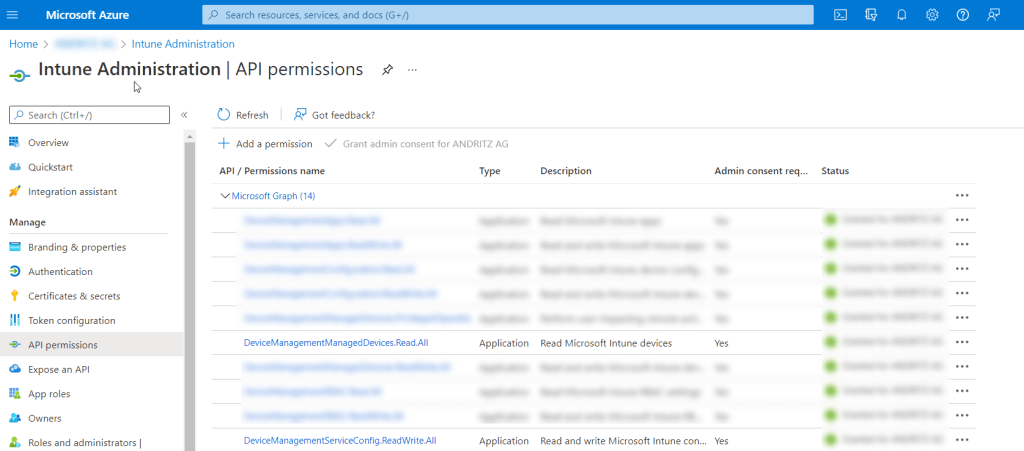
As mentioned above we have registered an App with Azure named Intune Administration and has assigned below Application permissions over Microsoft Graph API
DeviceManagementManagedDevices.Read.All
DeviceManagementServiceConfig.Read.All
Once that is done, we have then created client secret for the same
Client Secret: Do NOT store key as plain text in any script or document !

An Azure Automation account
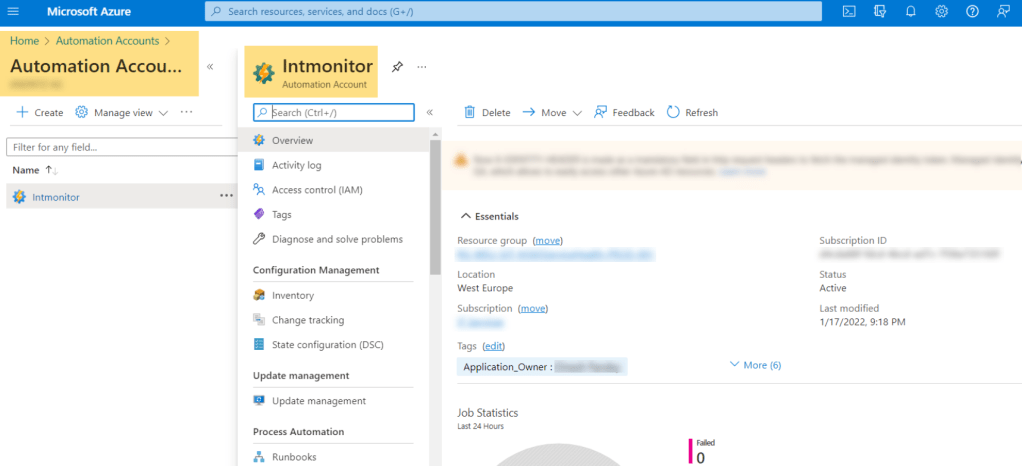
Now, here we need to create and Azure automation account, that can be created under Azure service, but the one who is creating should be having required rights on the Resource group.
While creating, choose appropriate location, subscription and resource group
Account Name: Intmonitor
Teams Channel & Webhook URI
Lets now create a Teams channel where we want to deliver the required alerts, to accomplish that once the channel is created we need to then obtain a webhook URI, that URI then can be used
as a variable to deliver the alerts. Please refer the previous article to understand the process of creating Webhook URL
Channel Name: Intune-Health-Monitoring
Webhook URI: https://xxxxxxxx..x.xx.x.xxxxxxxxxxxxxxxxxxxxxxxxxxxxxxxxxxxxxxxxxxxxxxxxxxxxxxxxxxx

Automation Runbook
Its time to create and configure a runbook to extract the expiry details and delivering them to the desired place.
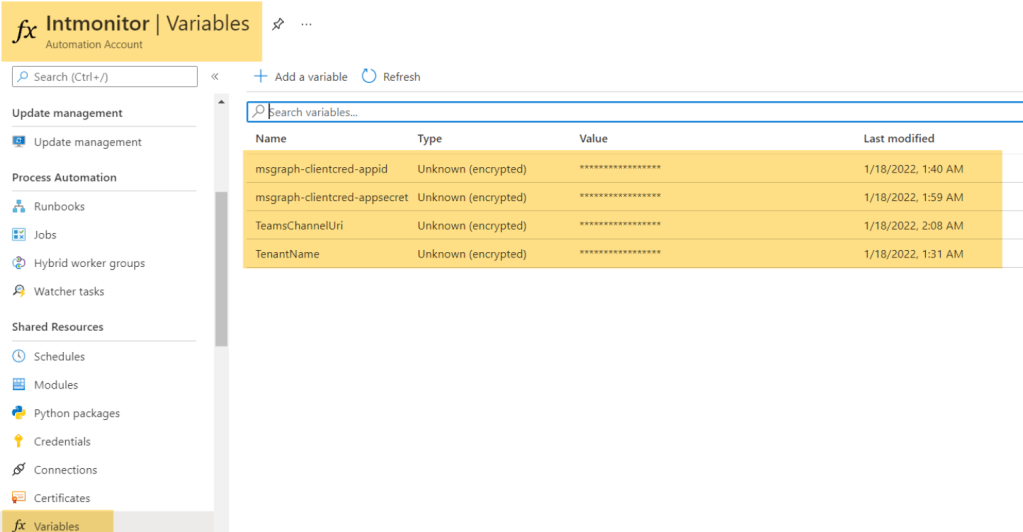
To process it further we need to first create certain variables as mentioned above. Variables needed are
- ClientID for our AzureAD Application
- ClientSecret for our AzureAD Application
- TenantName (onmicrosoft.com name)
- The Webhook URI
Under automation account click on variables blade and define the above with required details
Script and Module
Lets look for the module import for PowerShell script which is “Microsoft.Graph.Intune“, go to the Modules gallery under the automation account and click on Import.
Below is the script that will be used inside runbook, I’ve got it from JankeSkanke github, he did a awesome job to accomplish something like this, really appreciate his efforts.
<#
.SYNOPSIS
    Monitor all Apple Connectors like Push Notification Certificate, VPP and DEP tokens.
    This script is written to be used in an Azure Automation runbook to monitor your Intune deployment connectors.
.DESCRIPTION
    Monitor all Apple Connectors like Push Notification Certificate, VPP and DEP tokens.

Required modules:
    "Microsoft.graph.intune"
#>
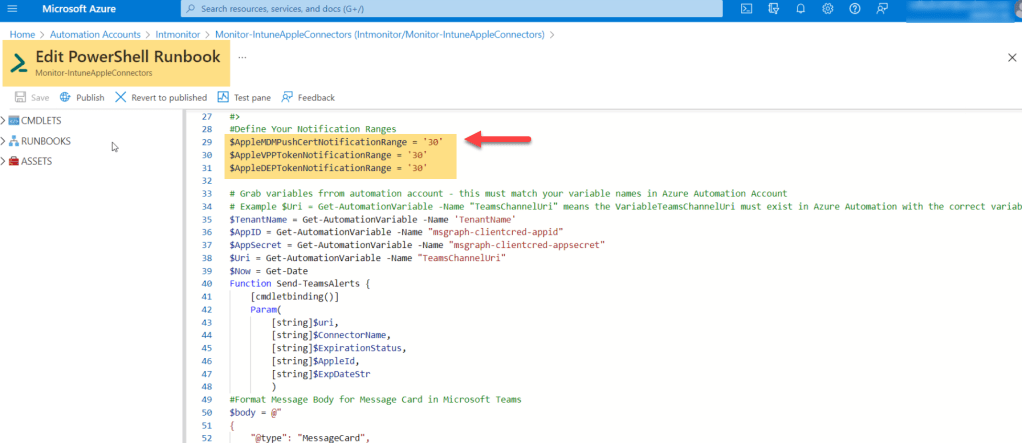
#Define Your Notification Ranges
$AppleMDMPushCertNotificationRange = '30'
$AppleVPPTokenNotificationRange = '30'
$AppleDEPTokenNotificationRange = '30'

# Grab variables frrom automation account - this must match your variable names in Azure Automation Account
# Example $Uri = Get-AutomationVariable -Name "TeamsChannelUri" means the VariableTeamsChannelUri must exist in Azure Automation with the correct variable.
$TenantName = Get-AutomationVariable -Name 'TenantName'
$AppID = Get-AutomationVariable -Name "msgraph-clientcred-appid"
$AppSecret = Get-AutomationVariable -Name "msgraph-clientcred-appsecret"
$Uri = Get-AutomationVariable -Name "TeamsChannelUri"
$Now = Get-Date
Function Send-TeamsAlerts {
    [cmdletbinding()]
    Param(
        [string]$uri,
        [string]$ConnectorName,
        [string]$ExpirationStatus,
        [string]$AppleId,
        [string]$ExpDateStr
        )
#Format Message Body for Message Card in Microsoft Teams
$body = @"
{
    "@type": "MessageCard",
    "@context": "https://schema.org/extensions",
    "summary": "Intune Apple Notification",
    "themeColor": "ffff00",
    "title": "$ExpirationStatus",
    "sections": [
     {
            "activityTitle": "Warning message",
            "activitySubtitle": "$Now",
            "activityImage": "https://github.com/JankeSkanke/imagerepo/blob/master/warning.png?raw=true",
            "facts": [
                {
                    "name": "Connector:",
                    "value": "$ConnectorName"
                },
                {
                    "name": "Status:",
                    "value": "$ExpirationStatus"
                },
                {
                    "name": "AppleID:",
                    "value": "$AppleID"
                },
                {
                    "name": "Expiry Date:",
                    "value": "$ExpDateStr"
                }
            ],
            "text": "Must be renewed by IT Admin before the expiry date."
        }
    ]
}
"@
# Post Message Alert to Teams
Invoke-RestMethod -uri $uri -Method Post -body $body -ContentType 'application/json' | Out-Null
Write-Output $ExpirationStatus
}
#Import Modules
import-module "Microsoft.graph.intune"

# Connect to Intune MSGraph with Client Secret quietly by updating Graph Environment to use our own Azure AD APP and connecting with a ClientSecret
Update-MSGraphEnvironment -SchemaVersion "beta" -AppId $AppId -AuthUrl "https://login.microsoftonline.com/$TenantName" -Quiet
Connect-MSGraph -ClientSecret $AppSecret -Quiet

# Checking Apple Push Notification Cert
$ApplePushCert = Get-IntuneApplePushNotificationCertificate
$ApplePushCertExpDate = $ApplePushCert.expirationDateTime
$ApplePushIdentifier = $ApplePushCert.appleIdentifier
$APNExpDate = $ApplePushCertExpDate.ToShortDateString()

if ($ApplePushCertExpDate -lt (Get-Date)) {
    $APNExpirationStatus = "MS Intune: Apple MDM Push certificate has already expired"
    Send-TeamsAlerts -uri $uri -ConnectorName "Apple Push Notification Certificate" -ExpirationStatus $APNExpirationStatus -AppleId $ApplePushIdentifier -ExpDateStr $APNExpDate
}
else {
    $AppleMDMPushCertDaysLeft = ($ApplePushCertExpDate - (Get-Date))
    if ($AppleMDMPushCertDaysLeft.Days -le $AppleMDMPushCertNotificationRange) {
    $APNExpirationStatus = "MSIntune: Apple MDM Push certificate expires in $($AppleMDMPushCertDaysLeft.Days) days"
    Send-TeamsAlerts -uri $uri -ConnectorName "Apple Push Notification Certificate" -ExpirationStatus $APNExpirationStatus -AppleId $ApplePushIdentifier -ExpDateStr $APNExpDate
    }
    else {
    $APNExpirationStatus = "MSIntune: NOALERT"
    Write-Output "APN Certificate OK"
    }
}

# Checking Apple Volume Purchase Program tokens
$AppleVPPToken = Get-DeviceAppManagement_VppTokens

if($AppleVPPToken.Count -ne '0'){
    foreach ($token in $AppleVPPToken){
        $AppleVPPExpDate = $token.expirationDateTime
        $AppleVPPIdentifier = $token.appleId
        $AppleVPPState = $token.state
        $VPPExpDateStr = $AppleVPPExpDate.ToShortDateString()
        if ($AppleVPPState -ne 'valid') {
            $VPPExpirationStatus = "MSIntune: Apple VPP Token is not valid, new token required"
            Send-TeamsAlerts -uri $uri -ConnectorName "VPP Token" -ExpirationStatus $VPPExpirationStatus -AppleId $AppleVPPIdentifier -ExpDateStr $VPPExpDateStr
        }
        else {
        $AppleVPPTokenDaysLeft = ($AppleVPPExpDate - (Get-Date))
            if ($AppleVPPTokenDaysLeft.Days -le $AppleVPPTokenNotificationRange) {$VPPExpirationStatus = "MSIntune: Apple VPP Token expires in $($AppleVPPTokenDaysLeft.Days) days"
            Send-TeamsAlerts -uri $uri -ConnectorName "VPP Token" -ExpirationStatus $VPPExpirationStatus -AppleId $AppleVPPIdentifier -ExpDateStr $VPPExpDateStr
            }
            else {$VPPExpirationStatus = "MSIntune: NOALERT"
            Write-Output "Apple VPP Token OK"
            }
        }
    }
}

# Checking DEP Token
$AppleDEPToken = (Invoke-MSGraphRequest -Url 'https://graph.microsoft.com/beta/deviceManagement/depOnboardingSettings' -HttpMethod GET).value
if ($AppleDeptoken.Count -ne '0'){
    foreach ($token in $AppleDEPToken){
        $AppleDEPExpDate = $token.tokenExpirationDateTime
        $AppleDepID = $token.appleIdentifier
        $AppleDEPTokenDaysLeft = ($AppleDEPExpDate - (Get-Date))
        $DEPExpDateStr = $AppleDEPExpDate.ToShortDateString()
        if ($AppleDEPTokenDaysLeft.Days -le $AppleDEPTokenNotificationRange) {
            $AppleDEPExpirationStatus = "MSIntune: Apple DEP Token expires in $($AppleDEPTokenDaysLeft.Days) days"
            Send-TeamsAlerts -uri $uri -ConnectorName "DEP Token" -ExpirationStatus $AppleDEPExpirationStatus -AppleId $AppleDEPId -ExpDateStr $DEPExpDateStr
        }
        else {
            $AppleDEPExpirationStatus = "MSIntune: NOALERT"
            Write-Output "Apple DEP Token OK"
            }
    }
}
Runbook & Test
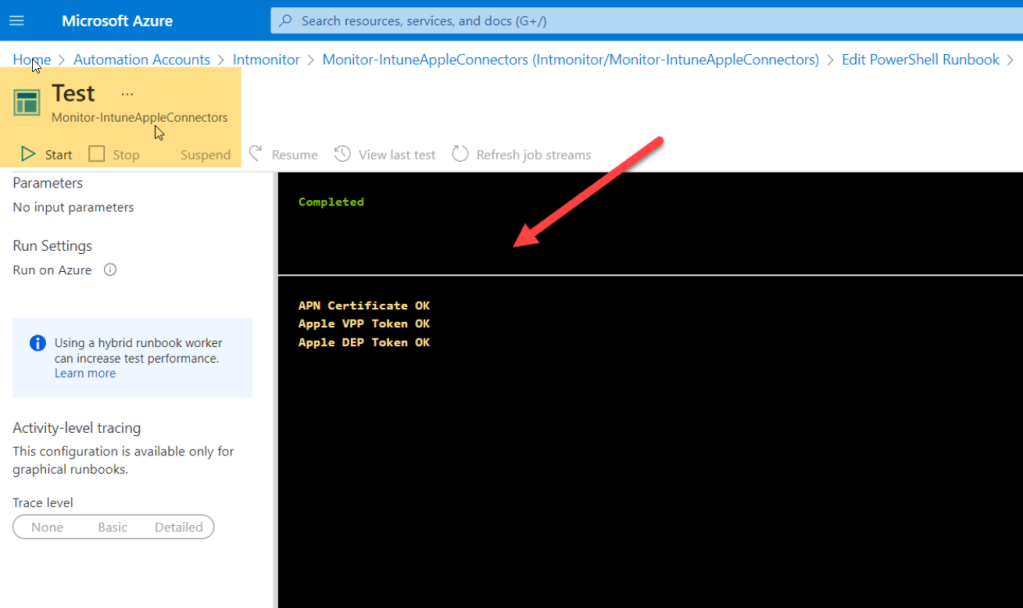
Now, click on Runbook to create one and use the above script as we already have variable defined, we can click on Test button to test the results in Test Pane, before taking to live schedule.
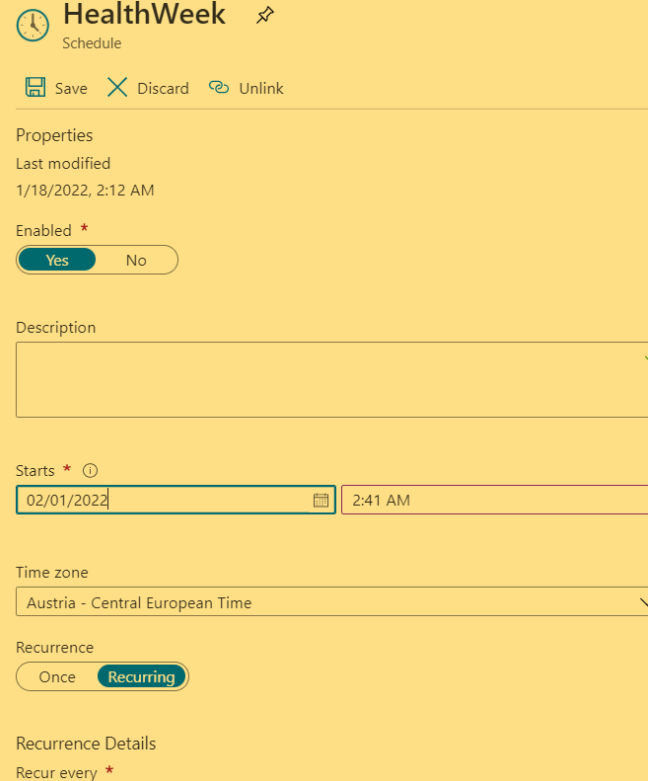
Once tested, it can be scheduled as per desired date and timings under schedule blade, screenshot attached for the reference.
Just to test the result, notification range can be changed from 30 days to 365 days, once tested change it as per the requirements.
Schedule
Once it has been tested, it can be put into schedule to make the monitoring live according to your needs:
End Result
 ITGalaxies