Sometimes, we get in a situation where we get a requirement to run ABM sync with Intune manually. Generally, it automatically syncs with Apple VPP, twice a day but if we see a requirement, it can be run manually too. Today, we will see how? Once administrator is logged in to Endpoint Manager with required role assigned, then follow the below steps:
Step 1:
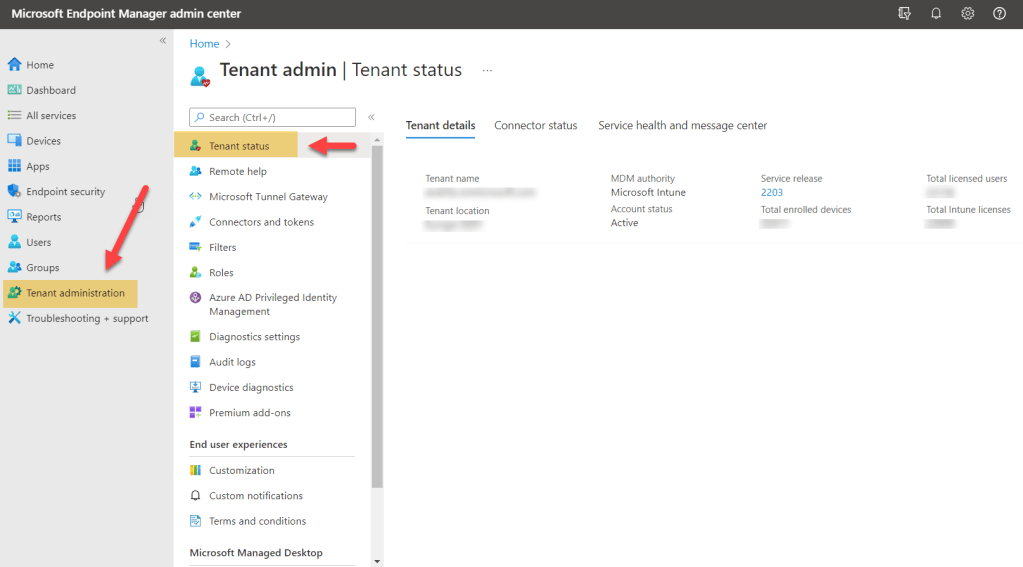
Click on Tenant Administration blade and click on Tenant status
Step 2:
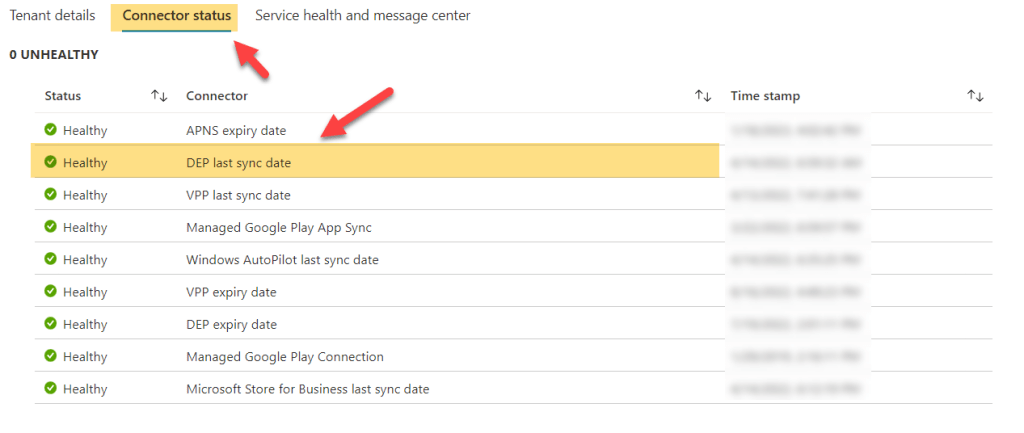
Now, click on Connector status option in the middle and click on DEP Connector
Step 3:
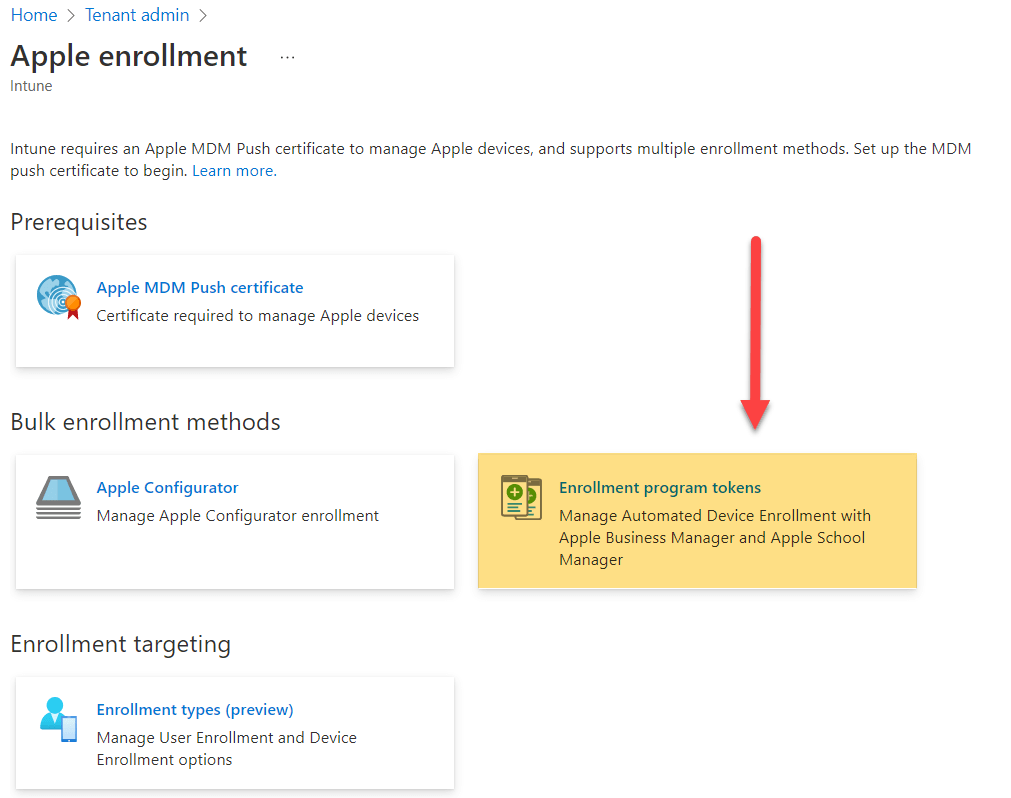
Now, it will take you to Apple Enrollment section, where, you need to select “Enrollment program tokens”
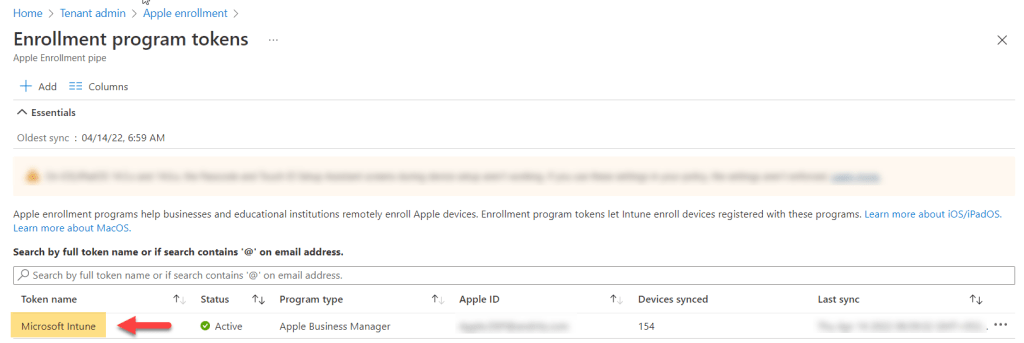
And it will list out the Token list integrated with the tenant, go into the ABM token listed in the list.
Step 4:
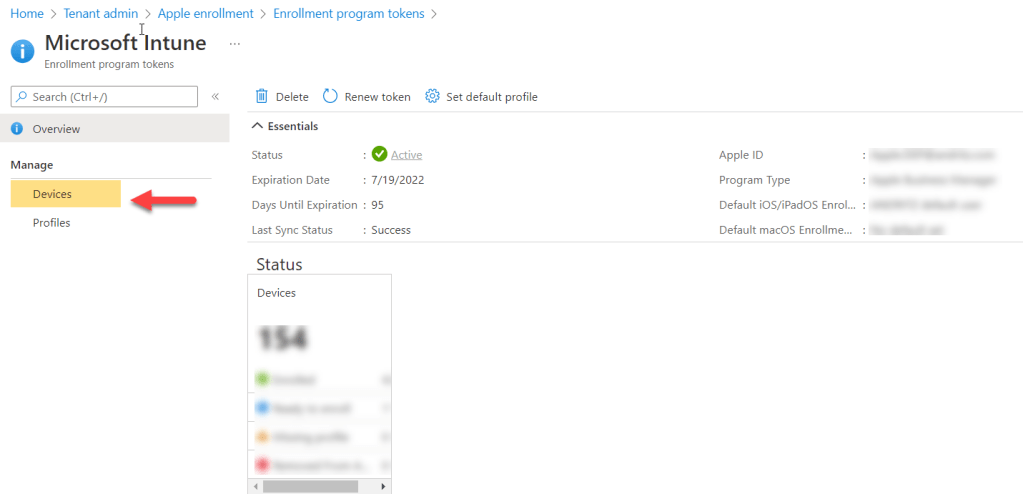
We have now Token overview with all the details, now go into Devices blade on the left hand side.
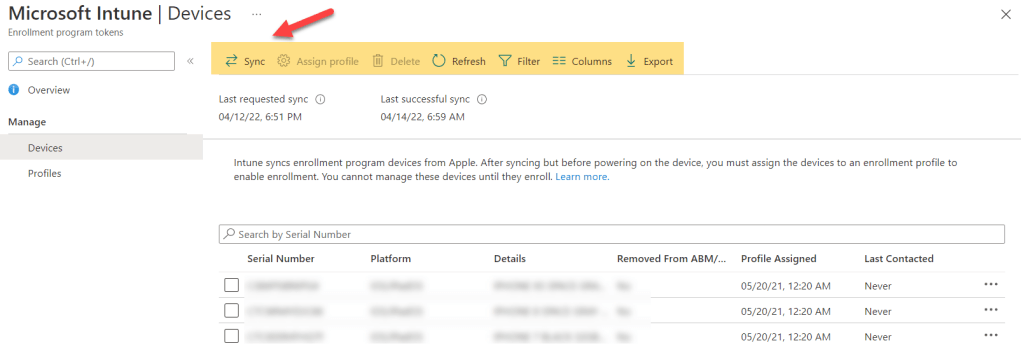
And, it will list the all devices which are there and also we get some options on the top ribbon.
Step 5:
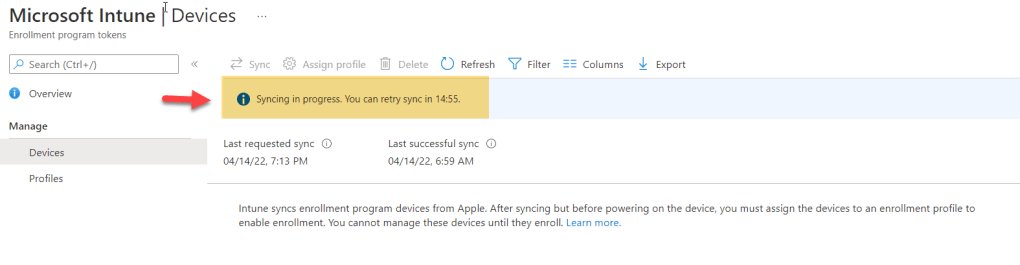
Now, from here we can run the sync
 ITGalaxies