We’ve seen in previous articles that how to configure “Android enrollment process” in Intune (Endpoint Management) and then we’ve multiple categories for enrollments.
BYOD is one of them, in this article I will only show that, how it looks like on end user side once he/she initiate the device registration and enrollment upon downloading and logging in “Company Portal” app.
Once “Company Portal” is downloaded, it will ask you to login with your organization email and password.
Once, that is done, below are the screens that you’re expected to get on your “Personally Owned device”

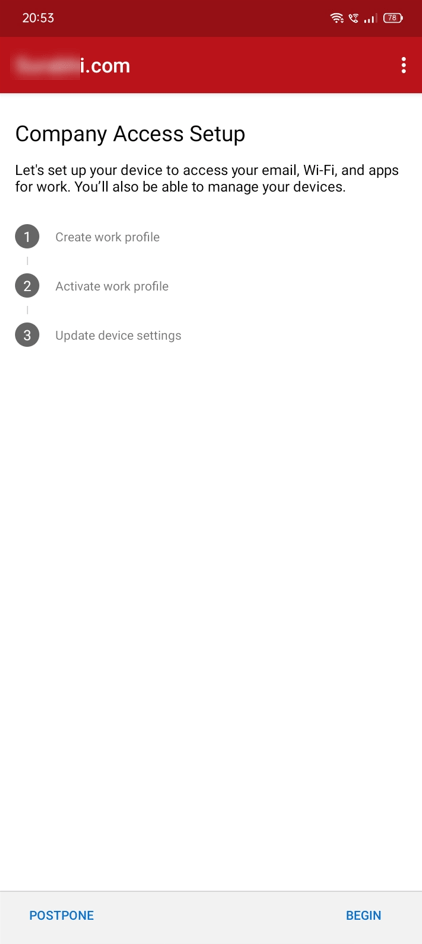
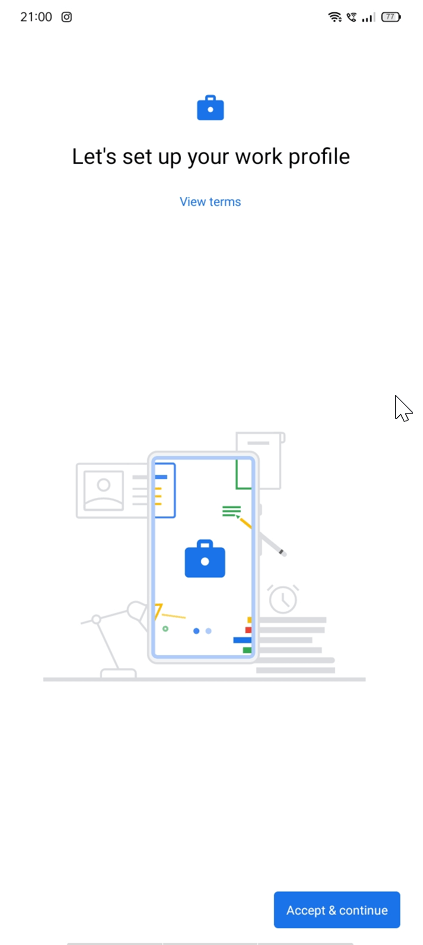
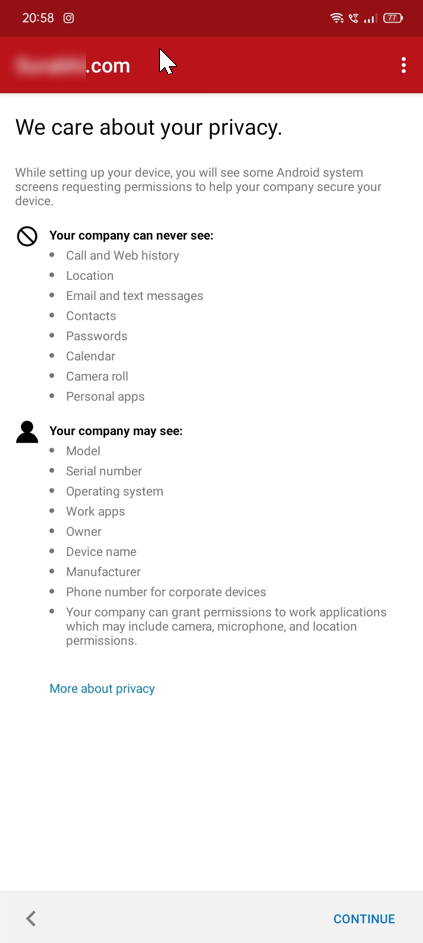
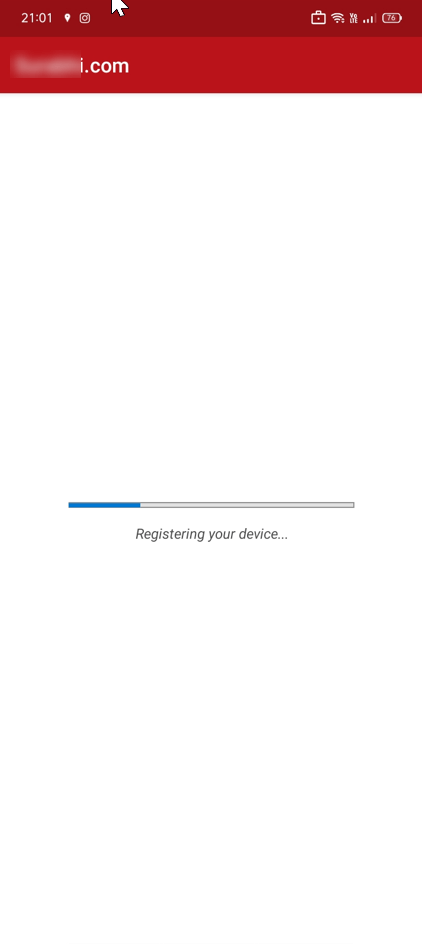
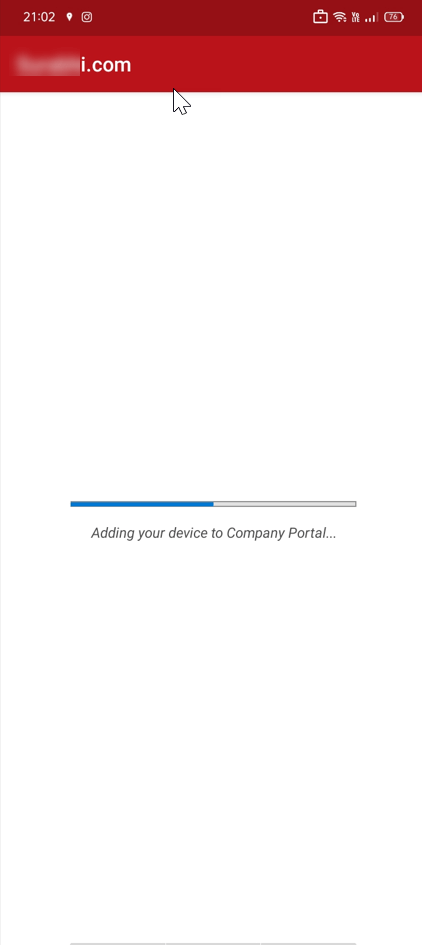
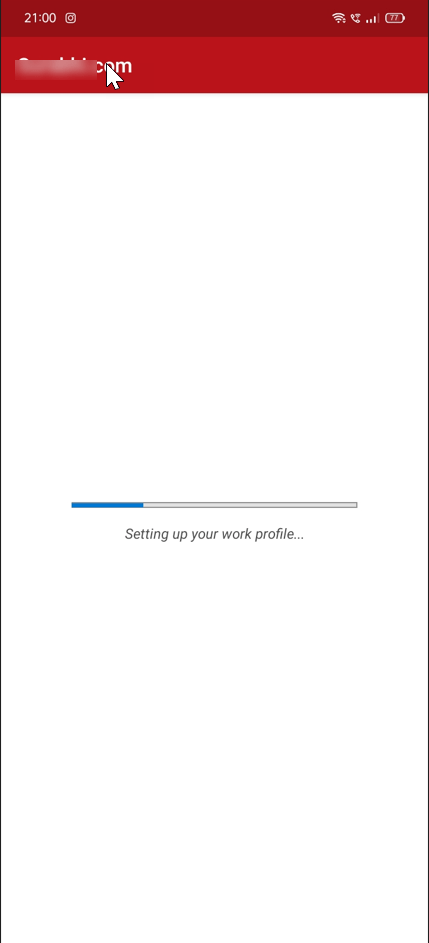
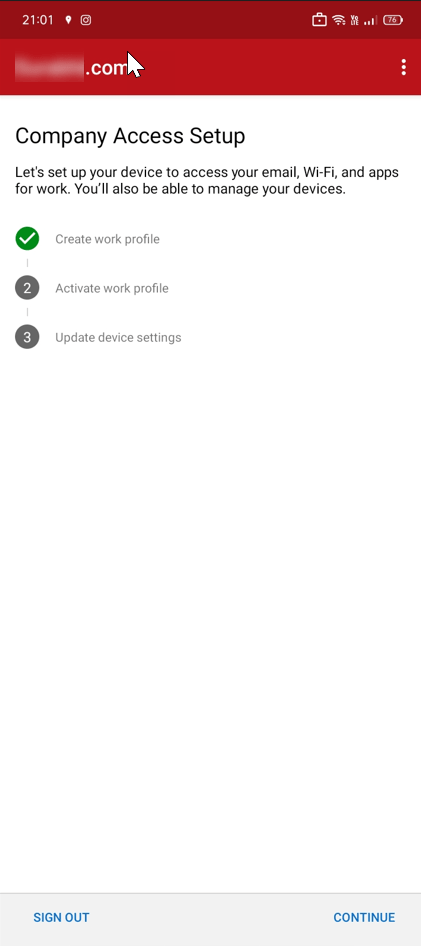
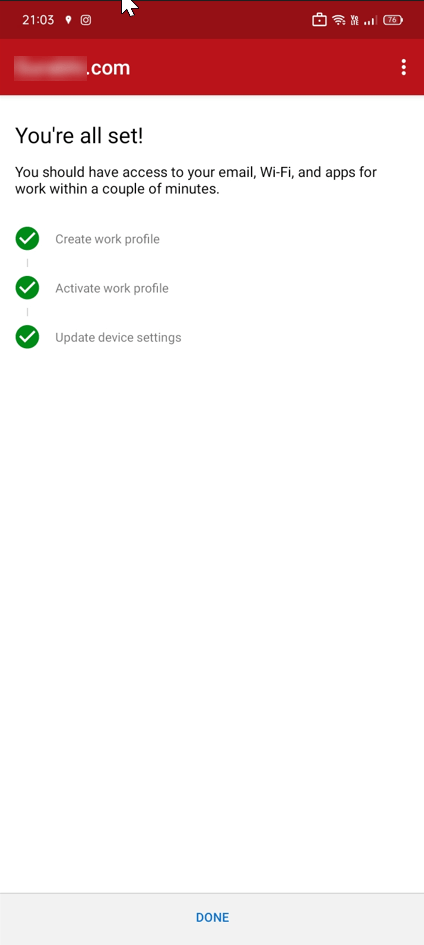
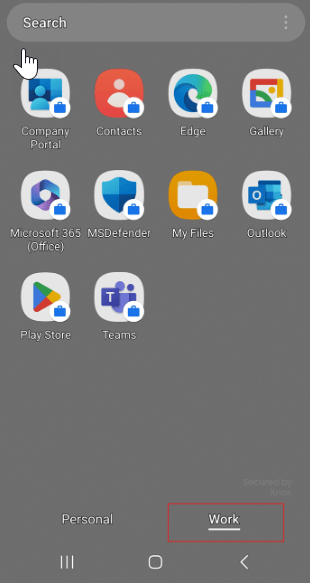
And its done, now it will have two profiles visible on your phone, like below, one is “Personal” where you have everything on your personal side or existing apps and settings and other one is “Work” profile, having brief case sign on each app, means and managed and locked. You’ll managed “play store” app and other apps too.
 ITGalaxies