When the tenant is being setup for the first time and the mailboxes are being created, online archive is disabled by default. We have to enable it manually (of course, if that is part of your license which has been purchased). I am not describing for bulk, that can be done via PowerShell script, I may write a new article to user PowerShell for bulk enable online archive. Lets see how to enable it via Exchange admin center.
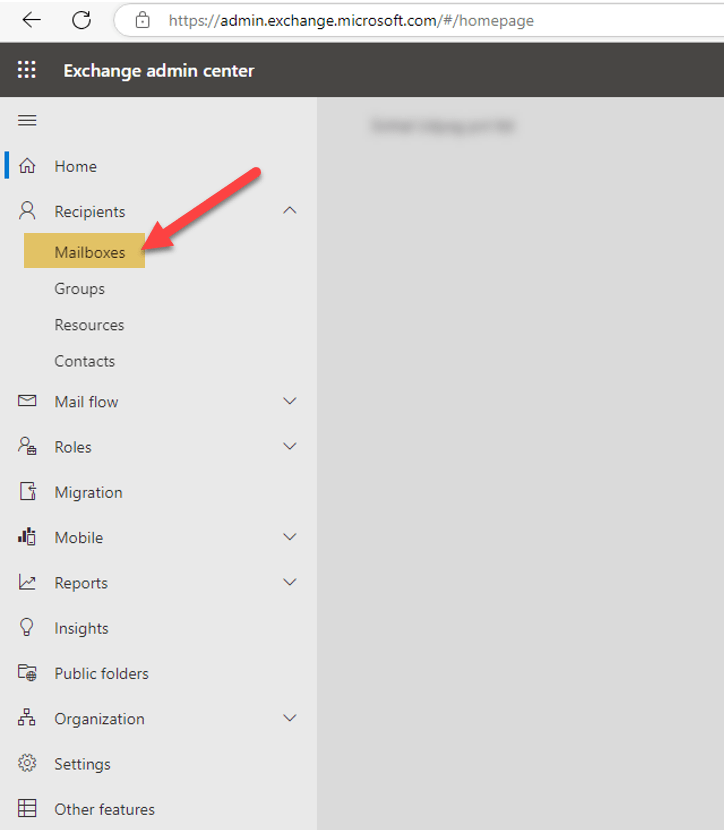
Step1: Launch Exchange Admin Center and look for Mailboxes on left pane:
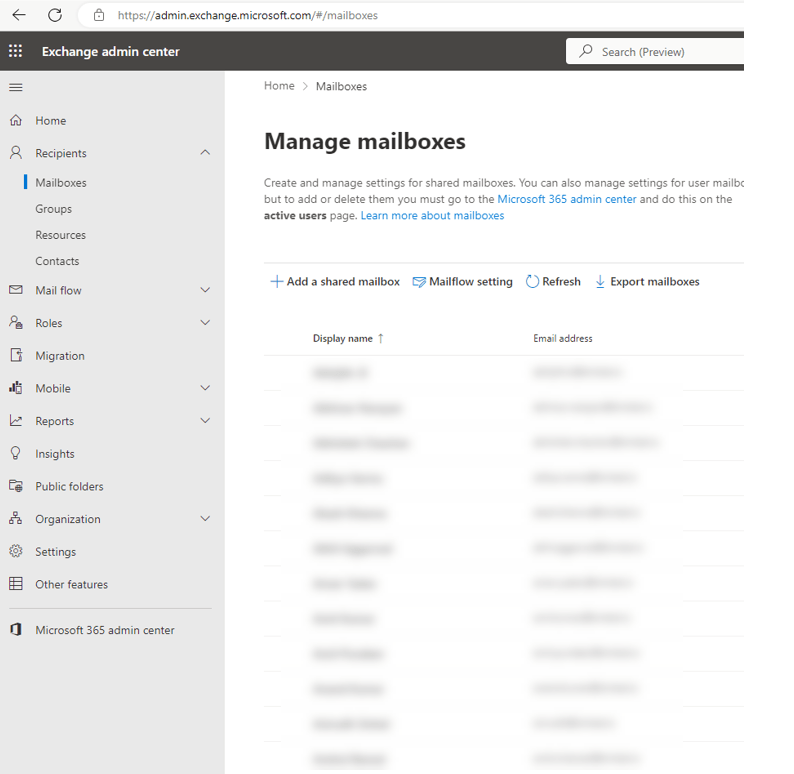
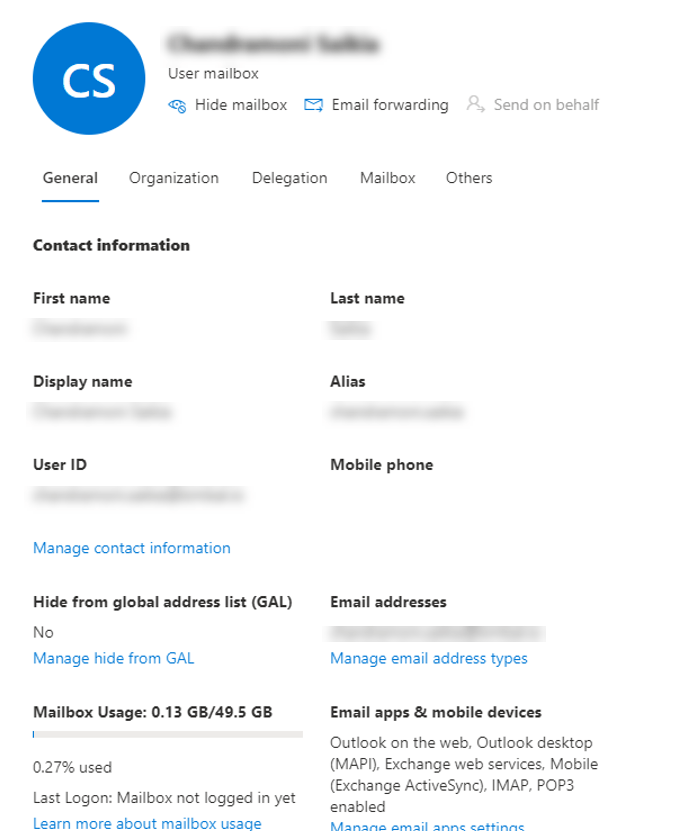
Step2: Now look for the mailbox for which we want to enable it and click on that mailbox, it will open up the property in a window:
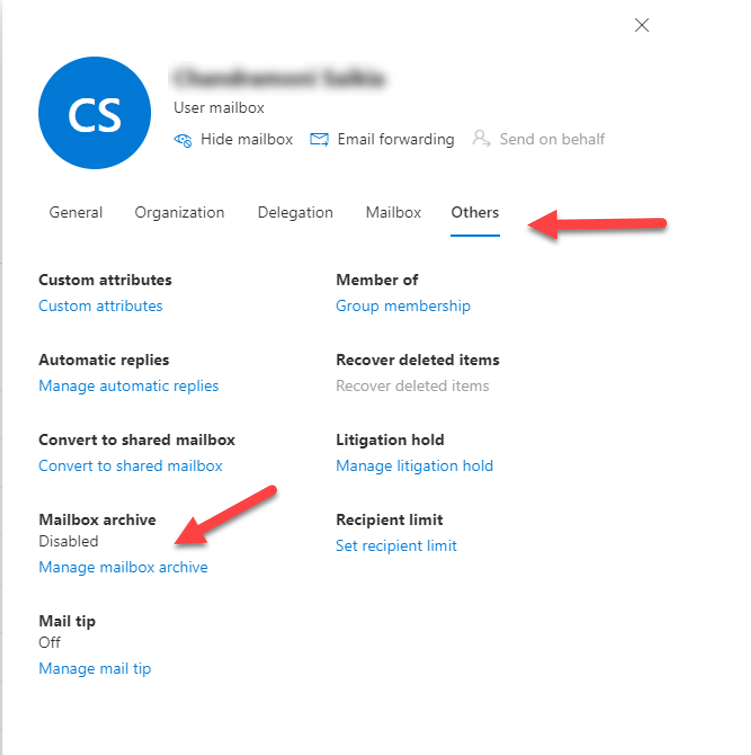
Step3: Now click on Others and look for option called: Mailbox Archive and we will see it shows disabled, click on Manage mailbox archive hyperlink, it will open up the mailbox archive settings:
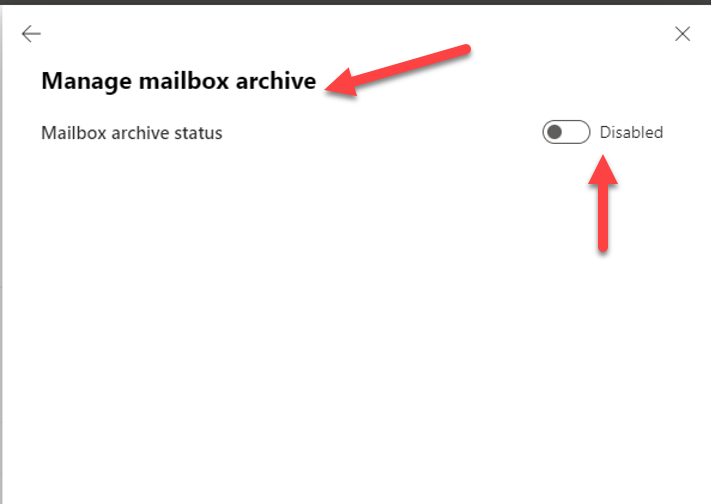
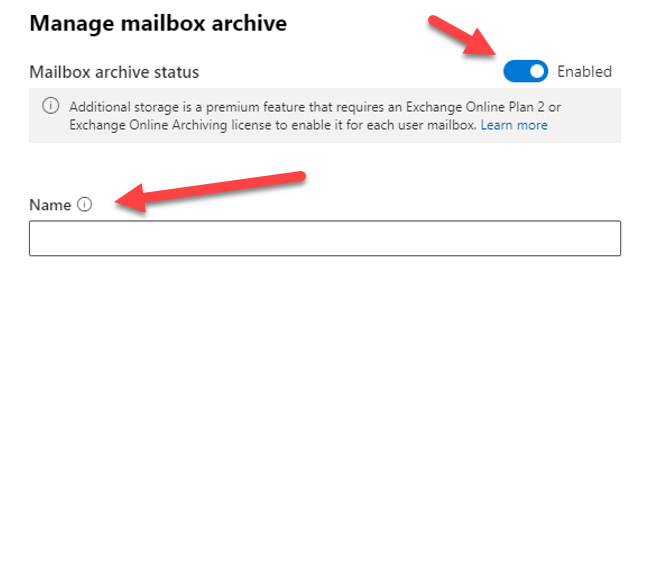
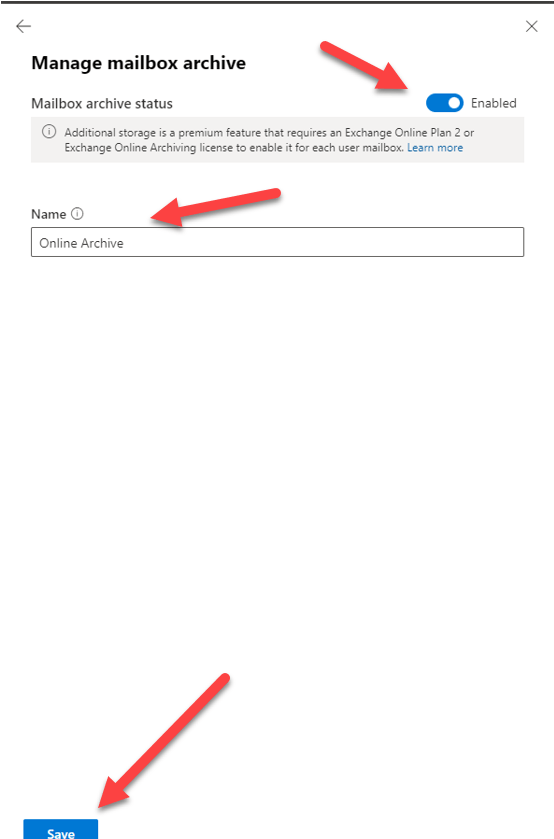
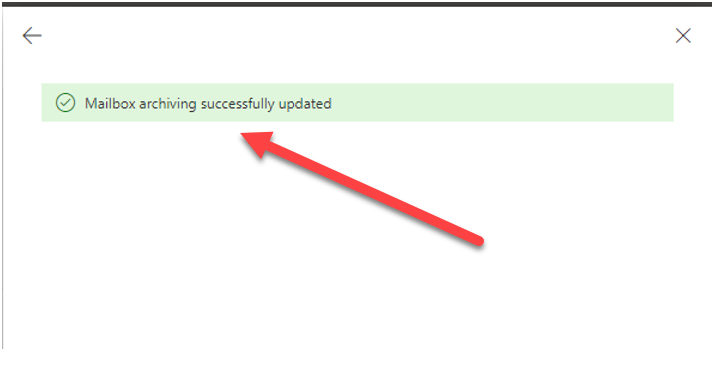
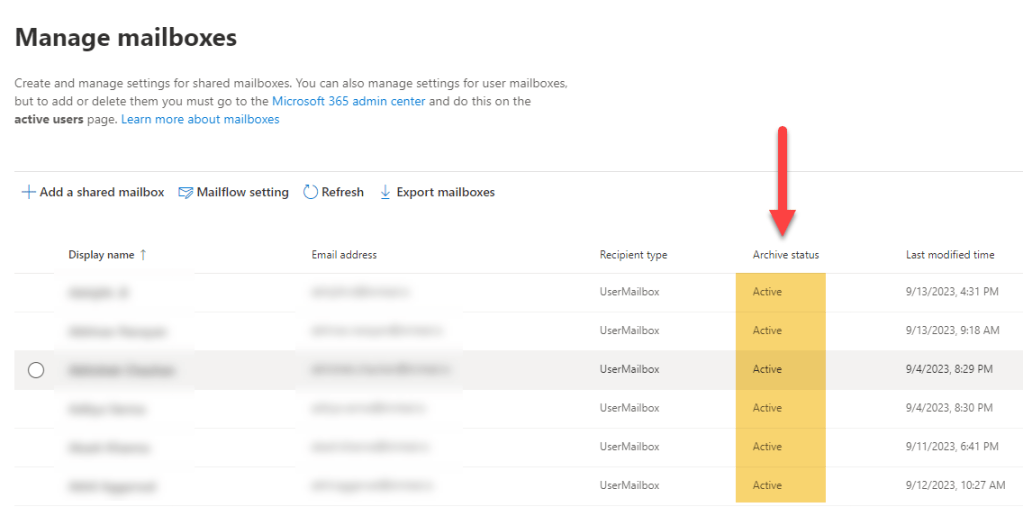
Step4: Now, toggle the disable option to enable it and once enabled it will show a option to name the folder, it can be anything, the way we want to make it visible in outlook or just simply name it as Online Archive and save it, that’s it. Its done, now going back to mailboxes list, it can be validated whether the status shows Active or deactive:
 ITGalaxies