If you’re using an Adobe subscription in your organization and your organization has more than one domain then you may need to add those domains in Adobe admin console in order to make it available for other domain users.
Below, we will see step by step process to add a custom domain and then linking the directory to complete the setup to add users from other domain.
NOTE: Make sure you have DNS records information available with you for the domain you’re going to add.
Step 1:
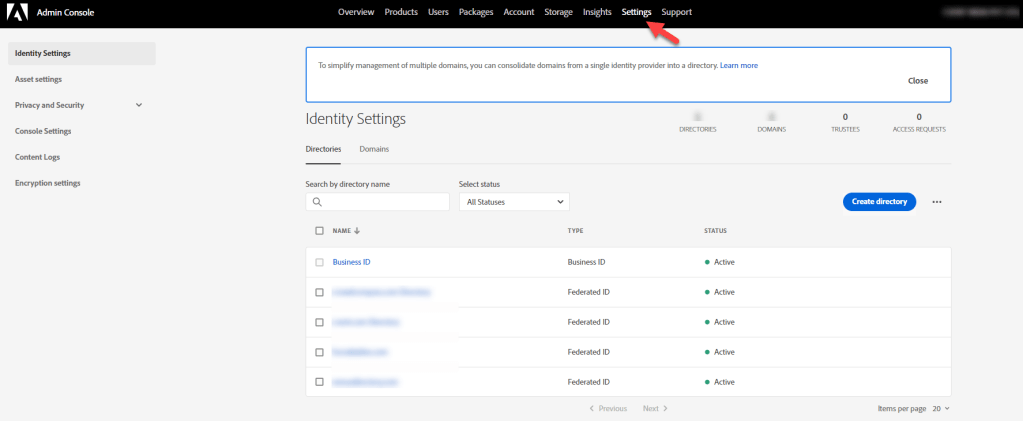
Login to Adobe admin console and go in Settings:
Step 2:
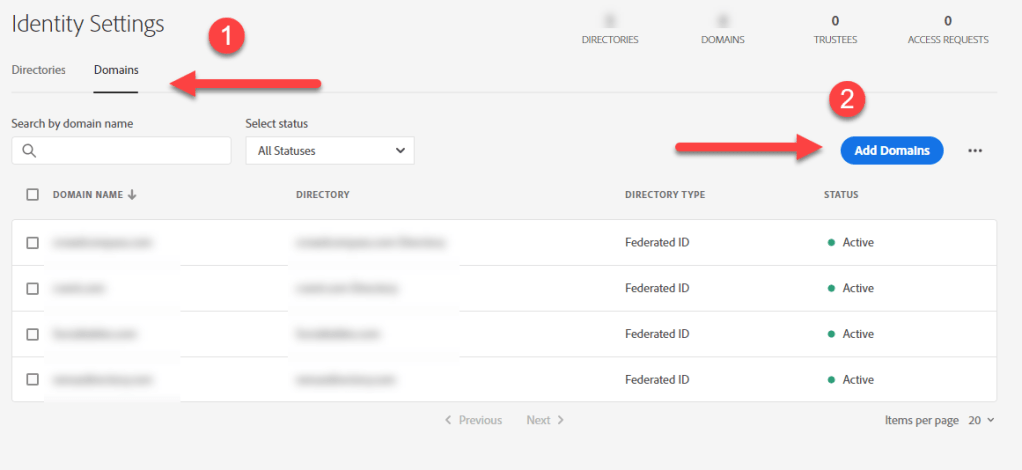
Then click on “Domains” and “Add domains“
Step 3:
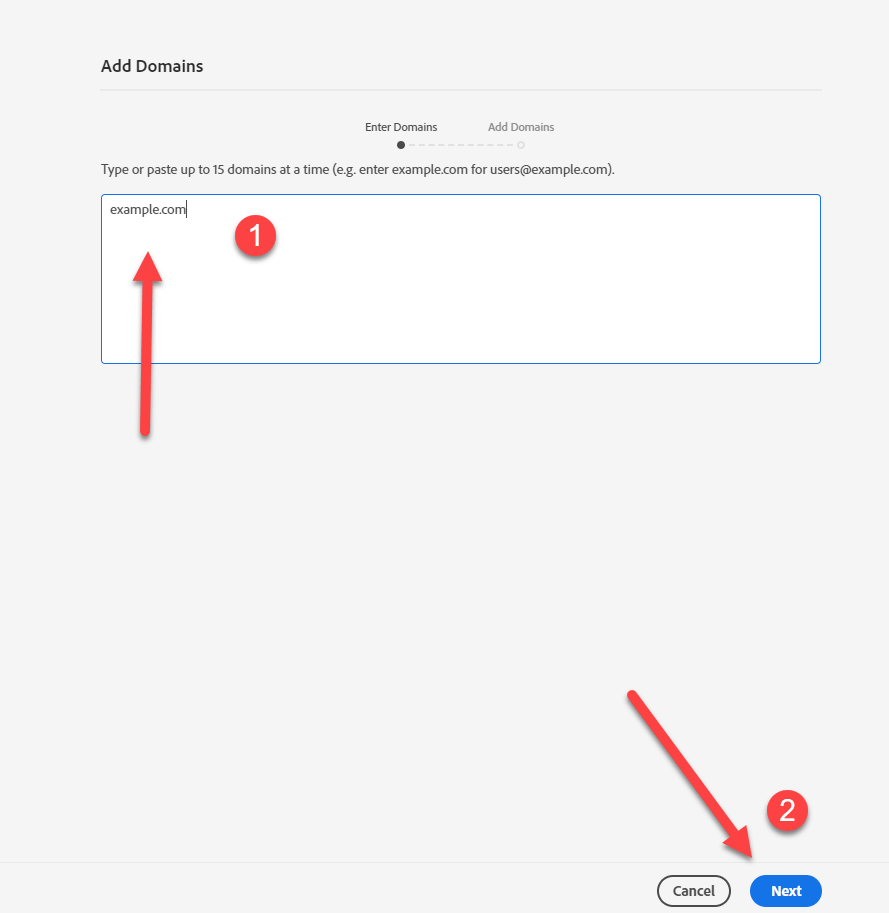
Now, we will add domain and then we will create a directory, once directory is created we will link it and it will start populating in dropdown, we will see how it will happen. Once clicked on Add Domains, below window will appear to enter domain details, enter the domain details and click on next:
Step 4:
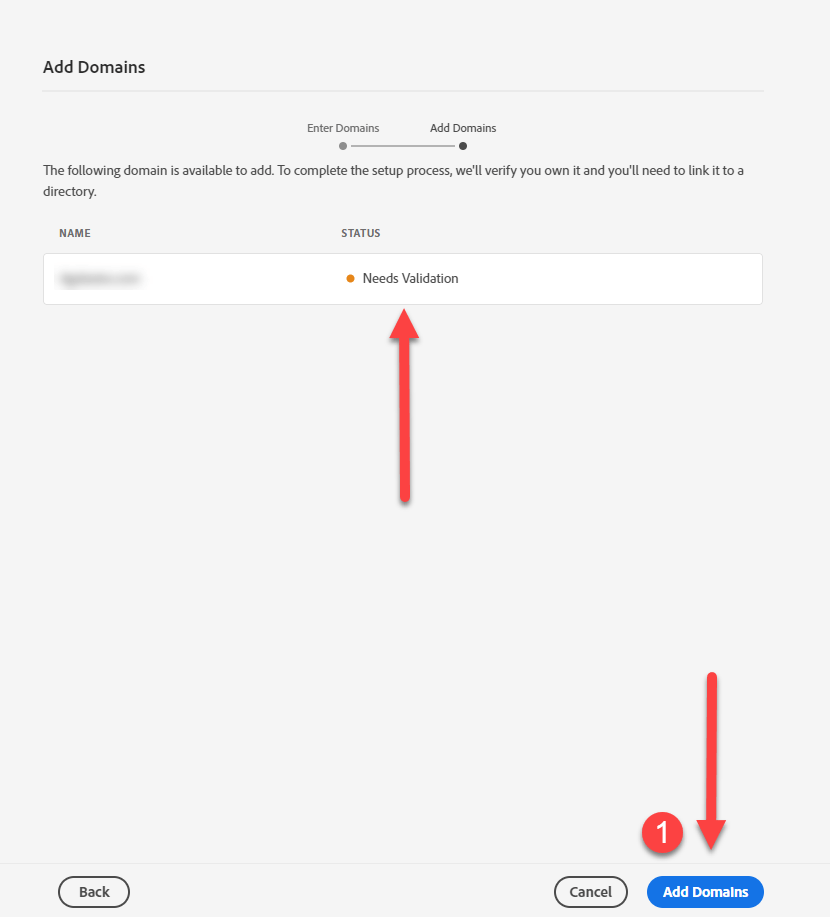
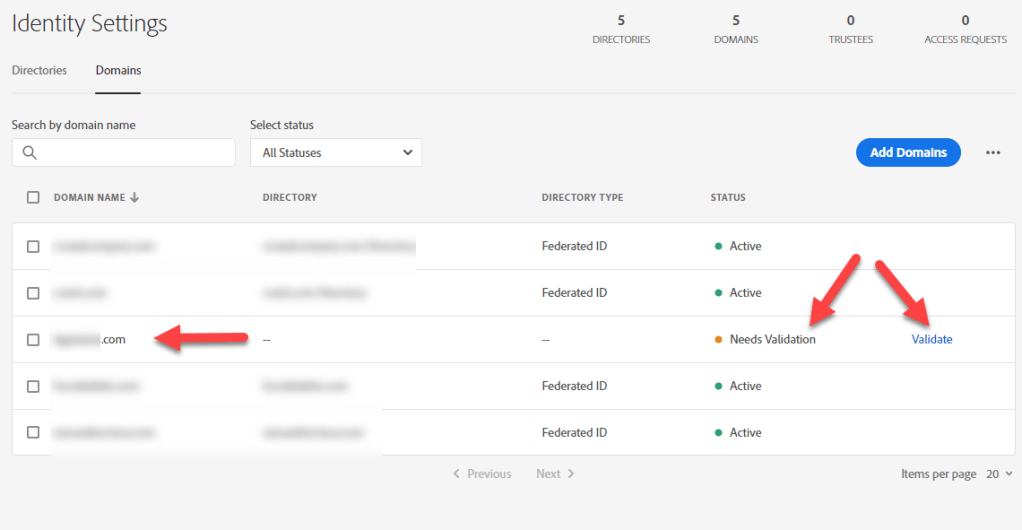
At next window, it will show the status as Needs Validation, here click on Add Domains button to get it added, now the newly added domain will start showing under domains list:
Step 5:
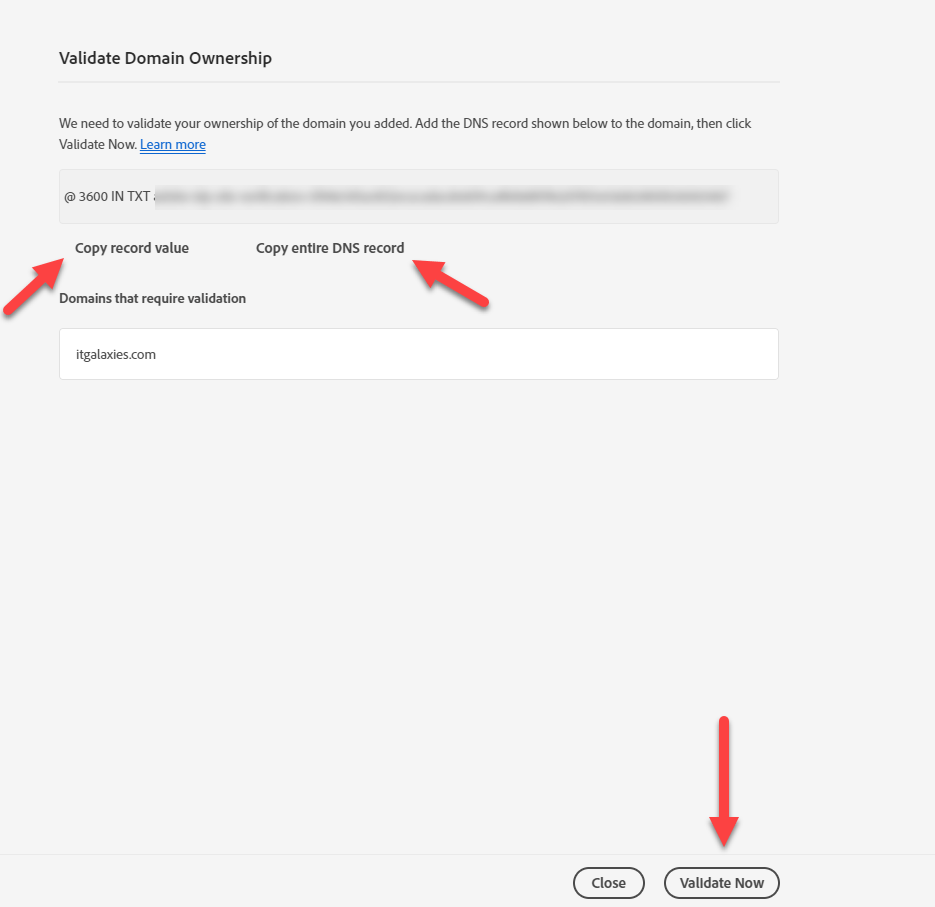
Now, hit the Validate button to get the details populated, which you need to use at your DNS provider, enter the details and get the validation done, once done, hit the Validate now button:
Note: Keep the DNS provider login details handy.

Step 6:
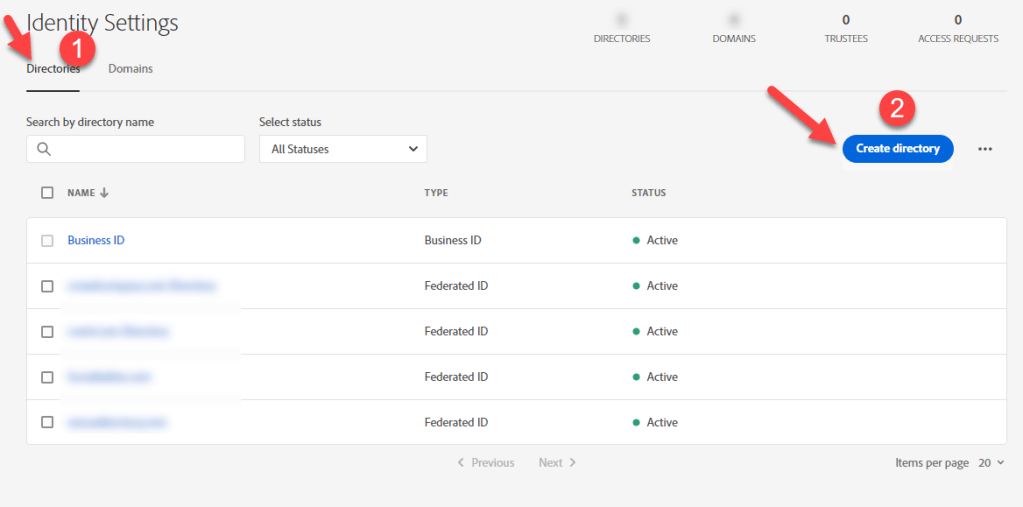
Once the domain validation is done, now you need to create a directory and then need to link it, in order to create federated users in that directory:
Step 7:
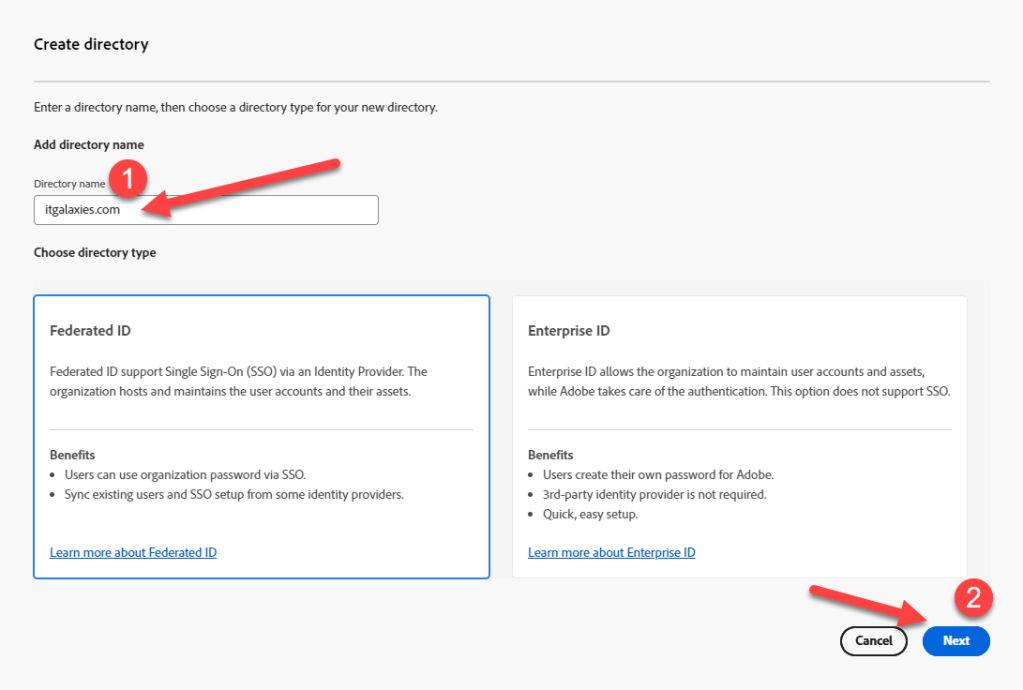
Now, add the directory name and choose the directory type:
Step 8:
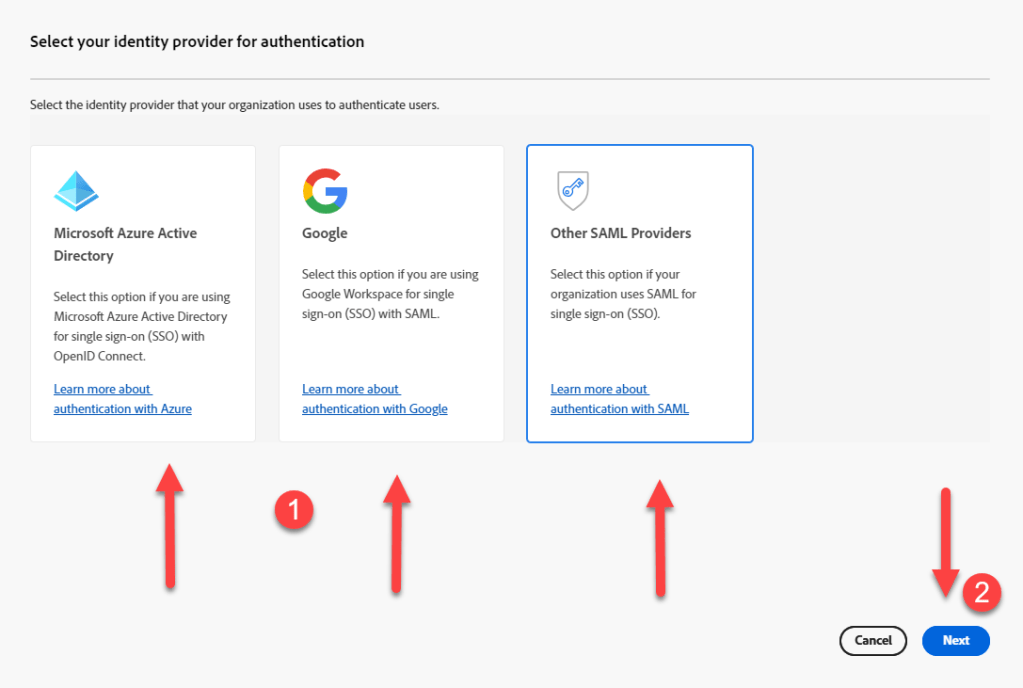
Now, choose the identity provider according to your organization set up and hit next:
Step 9:
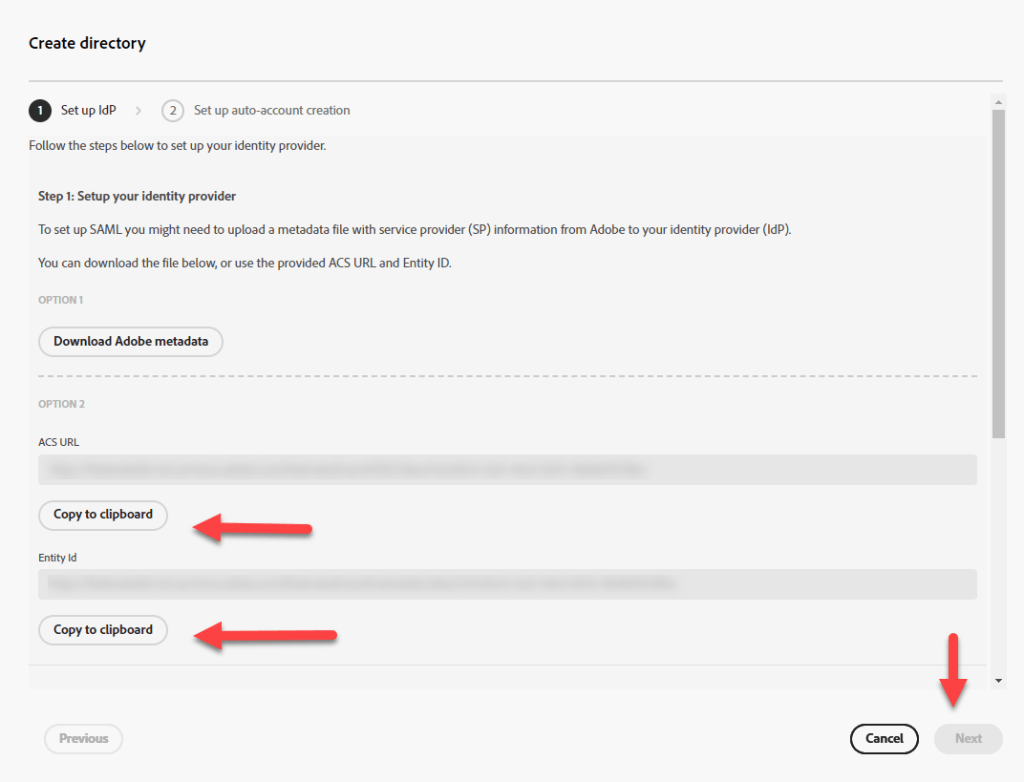
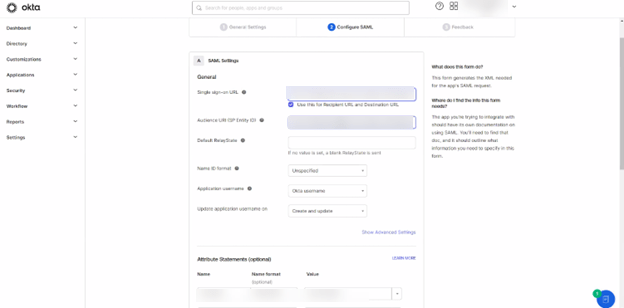
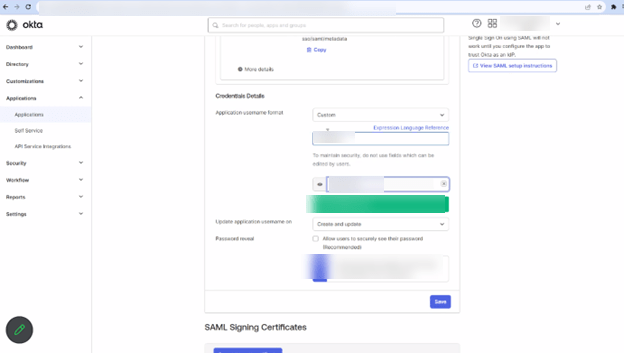
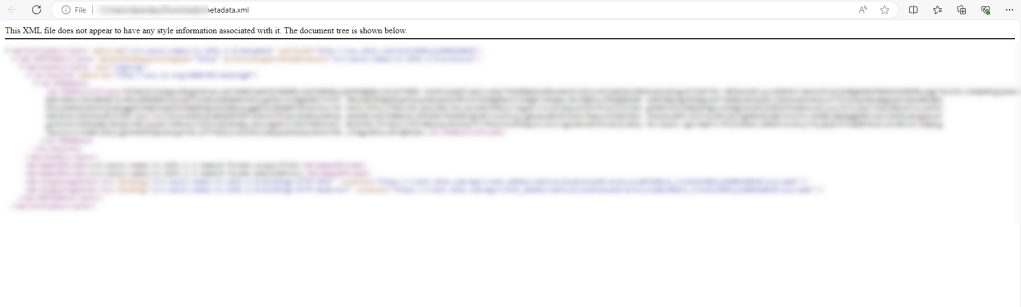
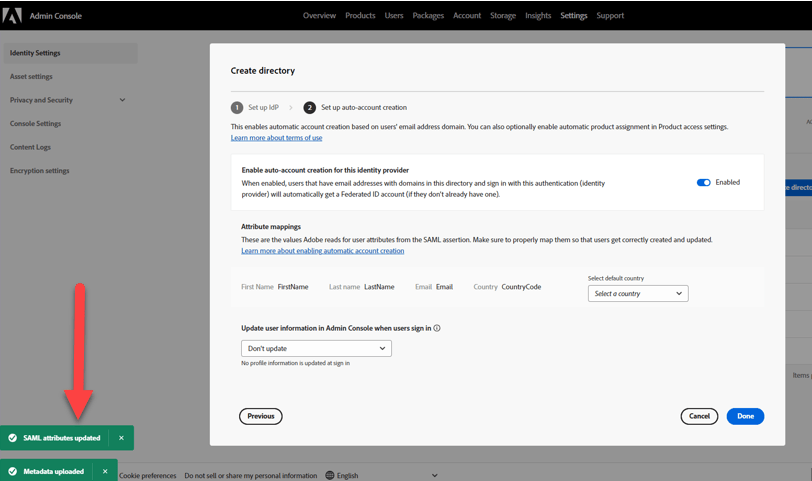
Now, copy the details for your identity provider and upload them there as per org setup and then download the metadata from there and upload it on step 2 and hit next:


Step 10:
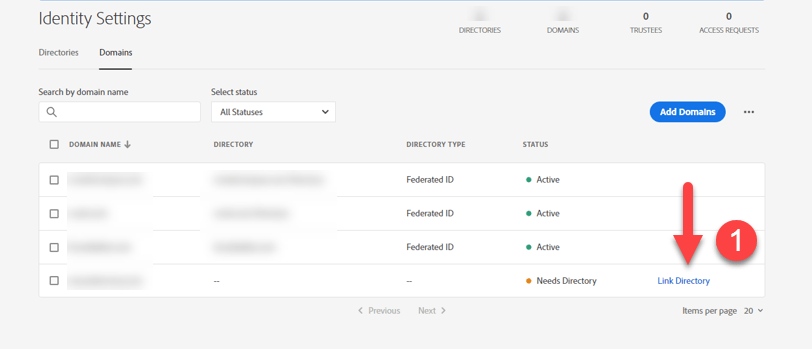
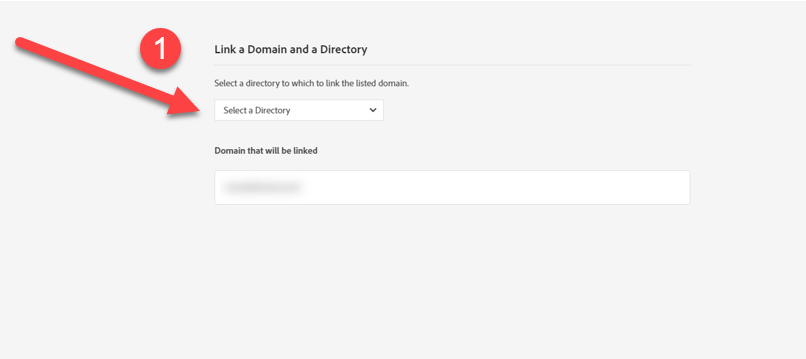
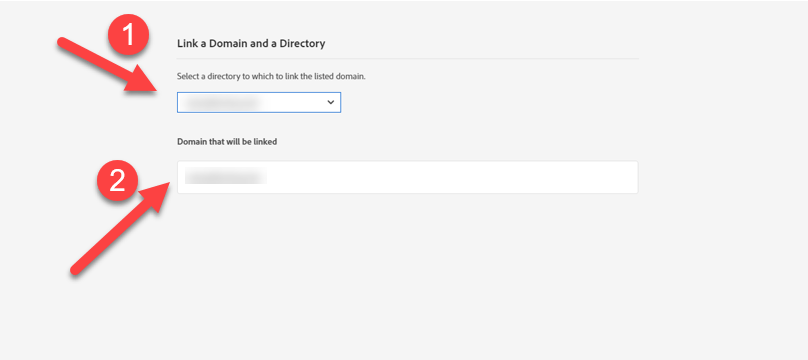
Now, its time to link the directory which we have created, we can see the hyperlink to link it, since we have already created it, it will populate under dropdown to select it:
Step 11:
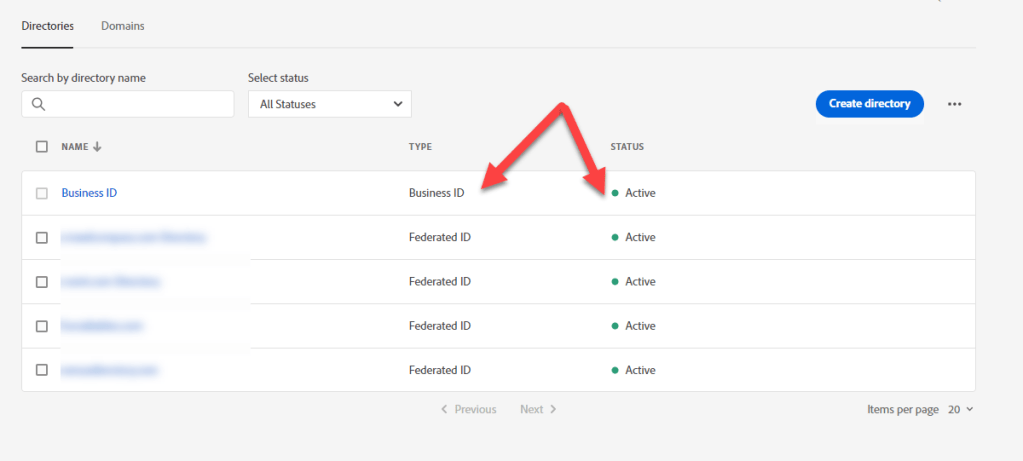
All the processes have been completed, you’ll now see the linked directory as an “Active“. It is now ready to onboard federated users and taking care of sign in process.
Hope it helps!!
 ITGalaxies